How to Get Instant Answers from Your OneDrive Files with AI
The Problem
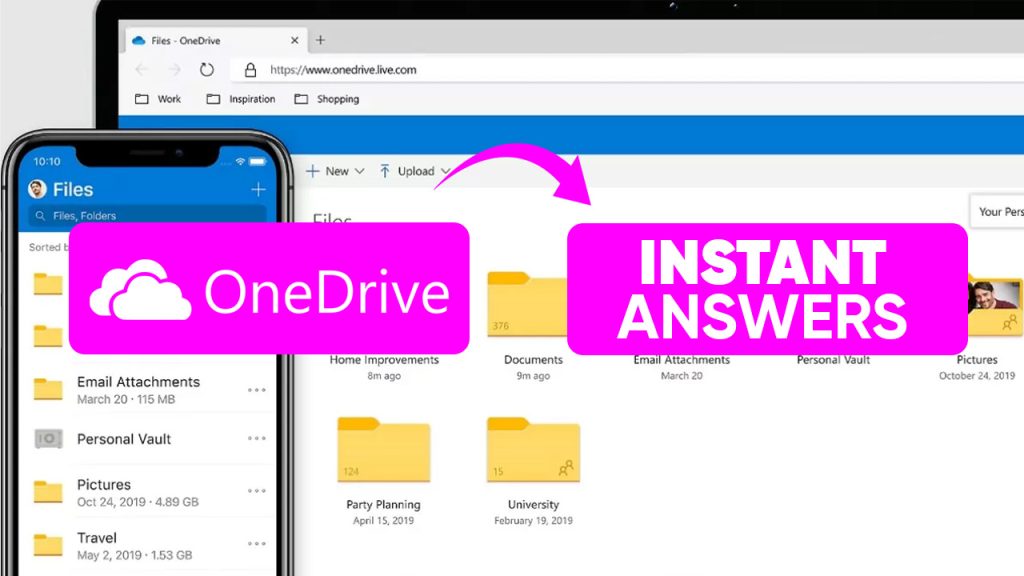
You have valuable knowledge in OneDrive, but your sales team doesn't have instant access to it. There's too much content, it's hard to organize, and digging through files and folders when you need an answer fast just doesn't work. So people ask a teammate instead - and everyone loses time.
The Solution
1up connects to your OneDrive and turns it into a knowledge base your team can actually query. Ask a question in Slack, Teams, or Google Chat and get an accurate answer sourced straight from your OneDrive files in seconds.
How to Connect OneDrive to 1up and Start Getting Answers
Most teams using OneDrive have put real work into organizing their content. Product docs, security materials, sales assets, compliance files - it's all in there. The problem is getting to the right file fast enough when someone actually needs it. 1up makes all of that content queryable so your team stops digging and starts getting answers.
Getting set up takes just a couple of minutes. Once your OneDrive is connected, your team can start getting answers from your files without ever having to open OneDrive.
Step 1: Connect OneDrive to 1up
Head to Knowledge in your 1up dashboard, click Add Knowledge, and select OneDrive. Once connected, you can pull in specific files or folders from OneDrive into your knowledge base and make them accessible to your whole team.

Step 2: Tag Your Sources So It's Easy to Navigate
Once your files are in, add tags to keep things organized. Something like "OneDrive," "Security Docs," or "Sales Assets" works well. Tags tell 1up exactly which content to draw from when your team asks a question or when you are filling out a questionnaire. You can even configure specific channels in Teams or Slack to only draw from OneDrive-tagged content, so your team always knows exactly where the answer is coming from.

Step 3: Add 1up to Slack, Teams, or Google Chat
Go to Ask 1up in your dashboard and connect your messaging tool. Once that is done, anyone on your team can ask a question in Slack, Teams, or Google Chat and get an answer back from your OneDrive files in seconds. They do not need a 1up license - they just tag @1up and get a fast, accurate response. No digging, no tab switching, no interrupting a colleague.

Step 4: Get Answers from Ask 1up, the Browser Plugin, or by Uploading Questionnaires
There are a few ways your team can use OneDrive content through 1up once everything is connected.
Ask @1up in Slack, Teams, or Google Chat for instant answers to customer questions, product questions, or anything else in your OneDrive files.
Use the Browser Plugin to pull answers while browsing or filling out web forms without switching tabs.
Upload a questionnaire and let 1up generate answers in bulk using your OneDrive content as the source. Works for customer questions, RFPs, DDQs, and security and compliance questionnaires. Upload the file, tell 1up to use your OneDrive content, and it handles the rest.

Step 5: Bonus - Spin Up a Customer-Facing Answer Hub
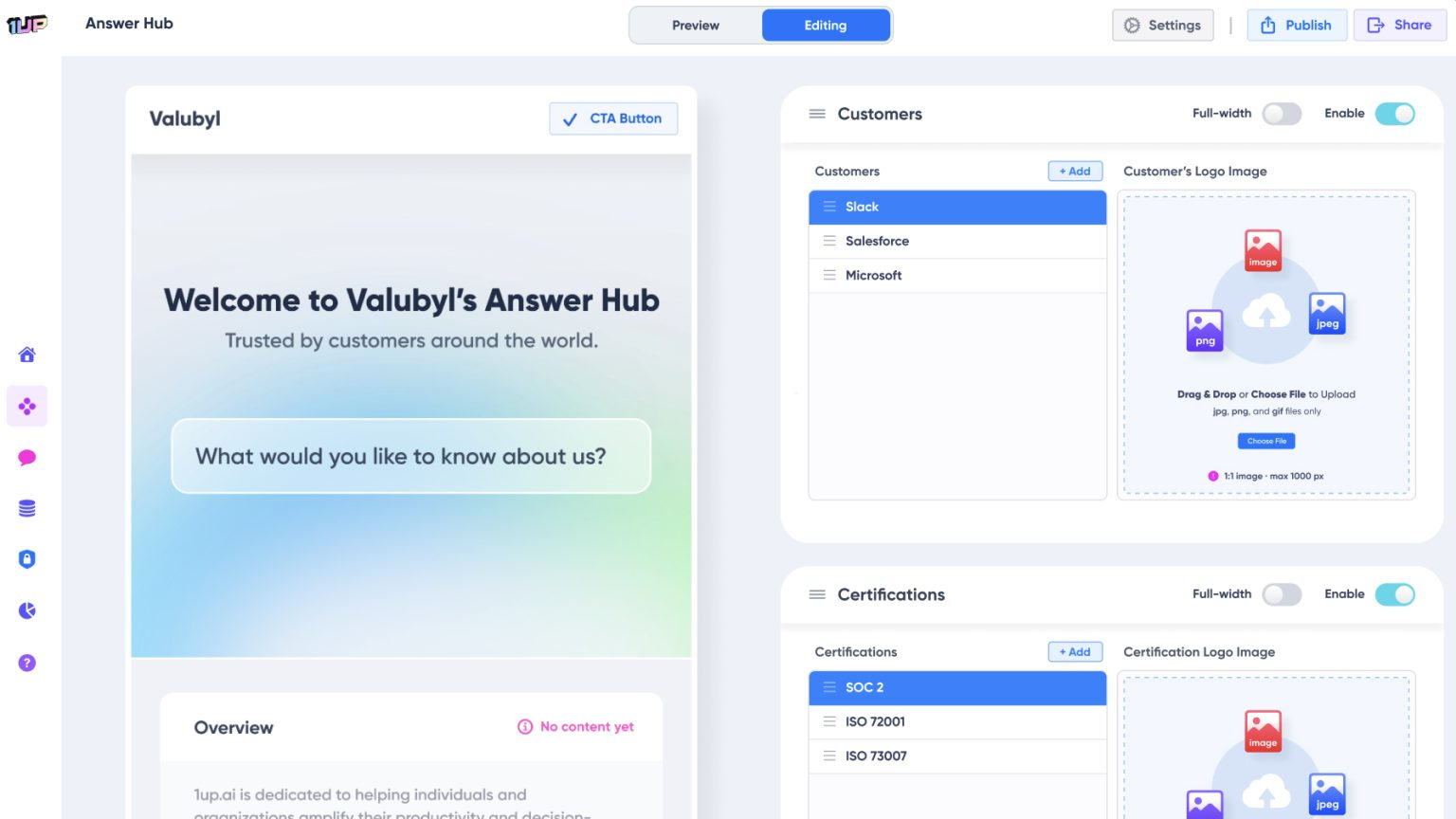
Once your OneDrive content is live in 1up, you can take it further and publish a customer-facing Answer Hub. A great fit for channel partners, prospects, and security and compliance reviews. Your customers get answers directly from your trusted OneDrive content without ever reaching your team. You control what they can access, you control the branding, and you know the answers are accurate because they come from your actual files.
The teams that get the most out of this are usually the ones that already have solid content in OneDrive. Product documentation, security materials, sales playbooks, previously completed questionnaires - all of it feeds into 1up and becomes instantly accessible to everyone on the team.
From there the use cases expand naturally. What starts as a way to answer quick internal questions becomes the engine that powers your RFP responses, your customer-facing Answer Hub, and your compliance questionnaire workflow. Everything still lives in OneDrive. 1up just makes it work a lot harder.
What Changes Once OneDrive Is Connected to 1up
- Your OneDrive content finally gets used: Most teams have put real effort into keeping OneDrive organized. The problem is nobody wants to go dig through it when they need something fast. 1up makes all of that content queryable from the tools your team is already in so it stops sitting idle.
- Answers in the tools your team already uses: No new software, no separate login. Your team asks a question in Slack, Teams, or Google Chat and gets an answer back in seconds sourced straight from OneDrive. Team members don't even need a 1up license to get answers.
- Works for customer questions, RFPs, and DDQs: Quick questions are just the start. Teams handling customer questionnaires, RFPs, and DDQs use 1up to generate answers in bulk from their OneDrive content. Upload the document, select OneDrive as the source, and 1up generates accurate responses based on your actual files. It also pairs well with other Microsoft tools like SharePoint if your team stores content in both places.
- You control exactly what it draws from: 1up only pulls from the files you connect and the sources you tag. Configure specific channels to use only OneDrive content and your team always knows the answer is coming from a source you trust.
See how other teams like McCready Law use 1up to make their knowledge base work for everyone. Read Customer Stories
FAQs
1up will generate answers from the specific OneDrive files and documents you choose. Within seconds of connecting, 1up can answer any questions in 1up, Slack, Teams, or Google Chat. You control the sources and maintain complete control over your information at all times.
Because they come from your own OneDrive content. 1up only pulls from the sources you connect and tag. It does not go beyond what you have given it access to.
Yes. You choose which files and folders get synced, and you use tags to control which sources 1up draws from when answering questions or filling out questionnaires.
Yes. Upload the questionnaire, select OneDrive as the source, and 1up generates answers based on your actual files. Works for customer questions, RFPs, DDQs, and security and compliance questionnaires.