How to Get Accurate Answers from Your Google Drive Files with AI
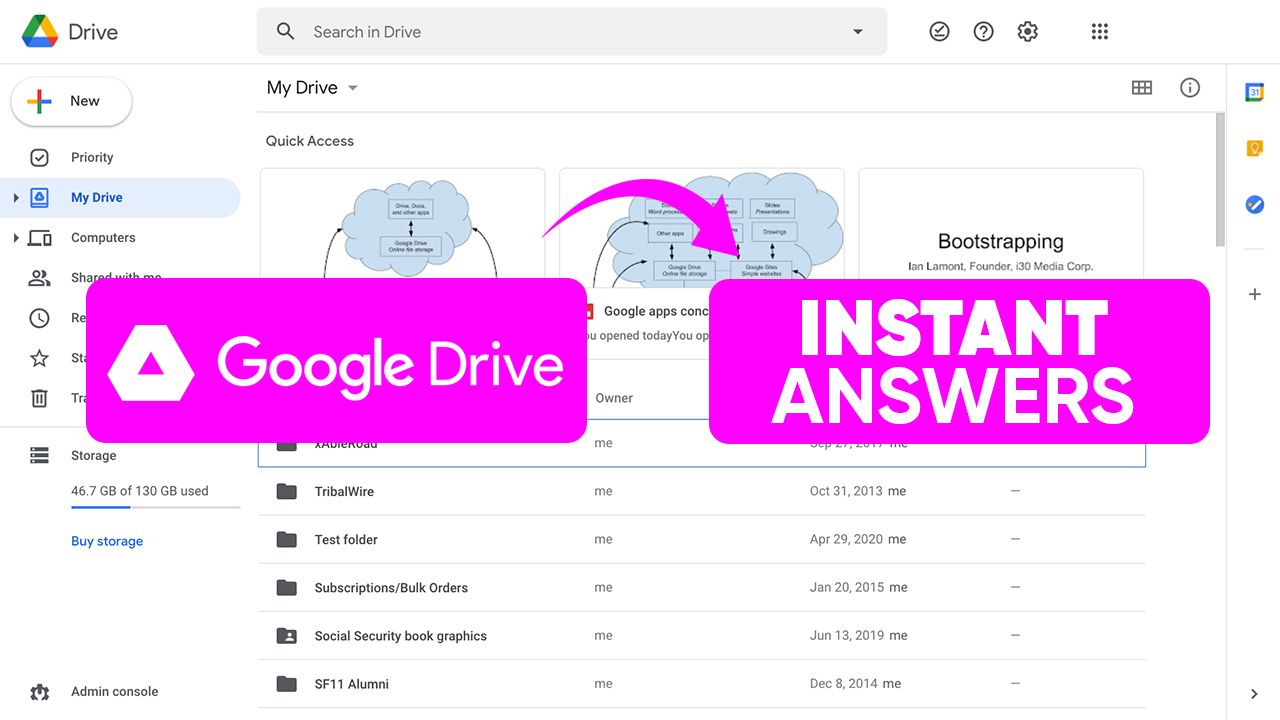
The Problem
Your Google Drive is full of good stuff. Sales playbooks, process guides, competitor battlecards, old RFP responses. The problem is your team doesn't really use it. They don't know where anything is, there's too much to sort through, and searching for a specific file when you need it fast just doesn't work.
The Solution
1up connects to Google Drive and turns your files into a knowledge base your team can actually query. Ask a question in Slack, Teams, or Google Chat and get an answer sourced from your actual content in seconds.
How to Connect Google Drive to 1up and Start Getting Answers
Most sales teams are not short on content. They are short on access. The stuff your team needs to close deals, handle objections, and fill out customer questionnaires already exists in Google Drive. 1up just makes it findable. Connect your files, tag your sources, and your team can start getting answers without digging through folders or bothering a colleague.
Setup is quick and the payoff is immediate. Here is how to get Google Drive working with 1up.
Step 1: Connect Google Drive to 1up
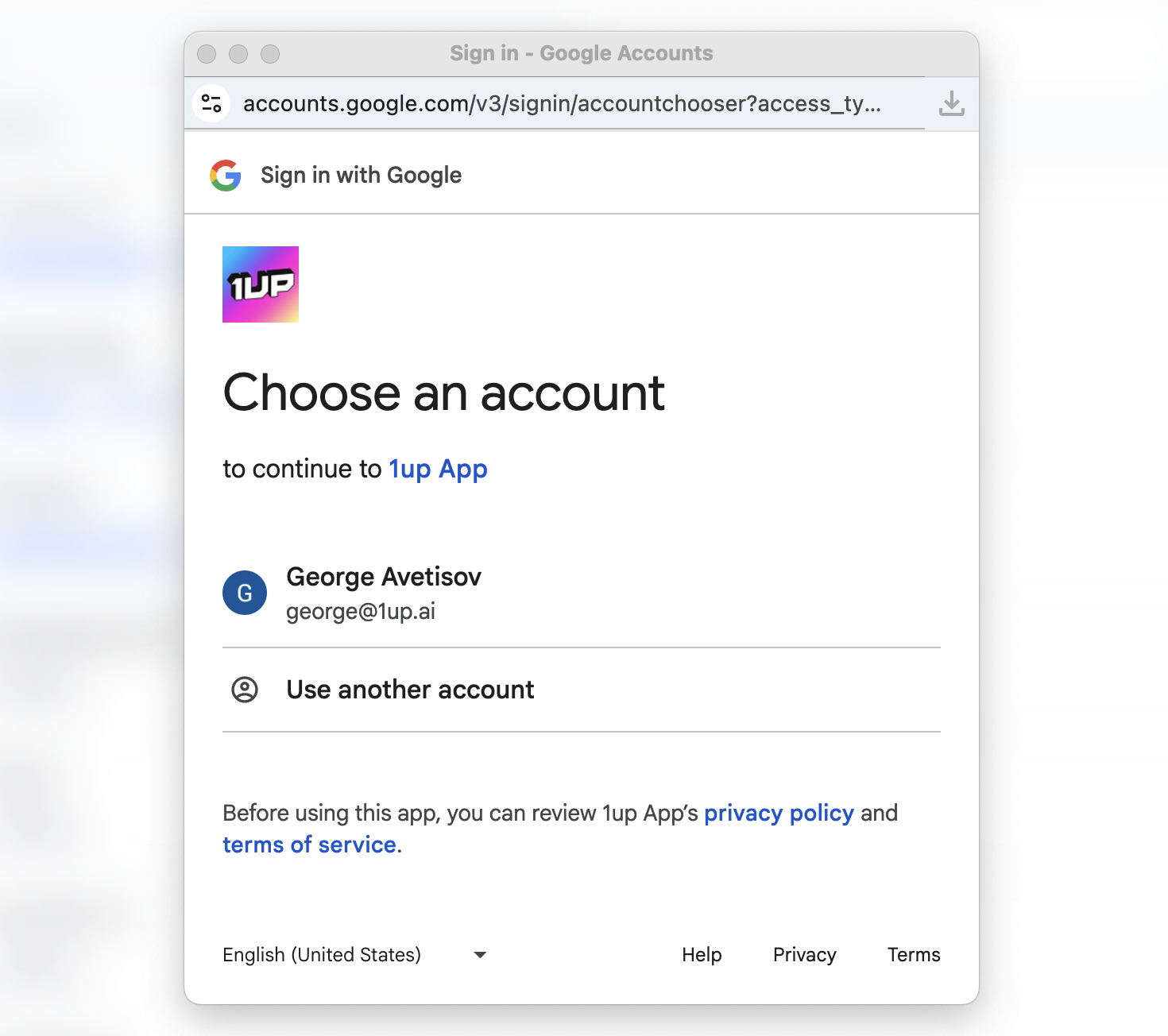
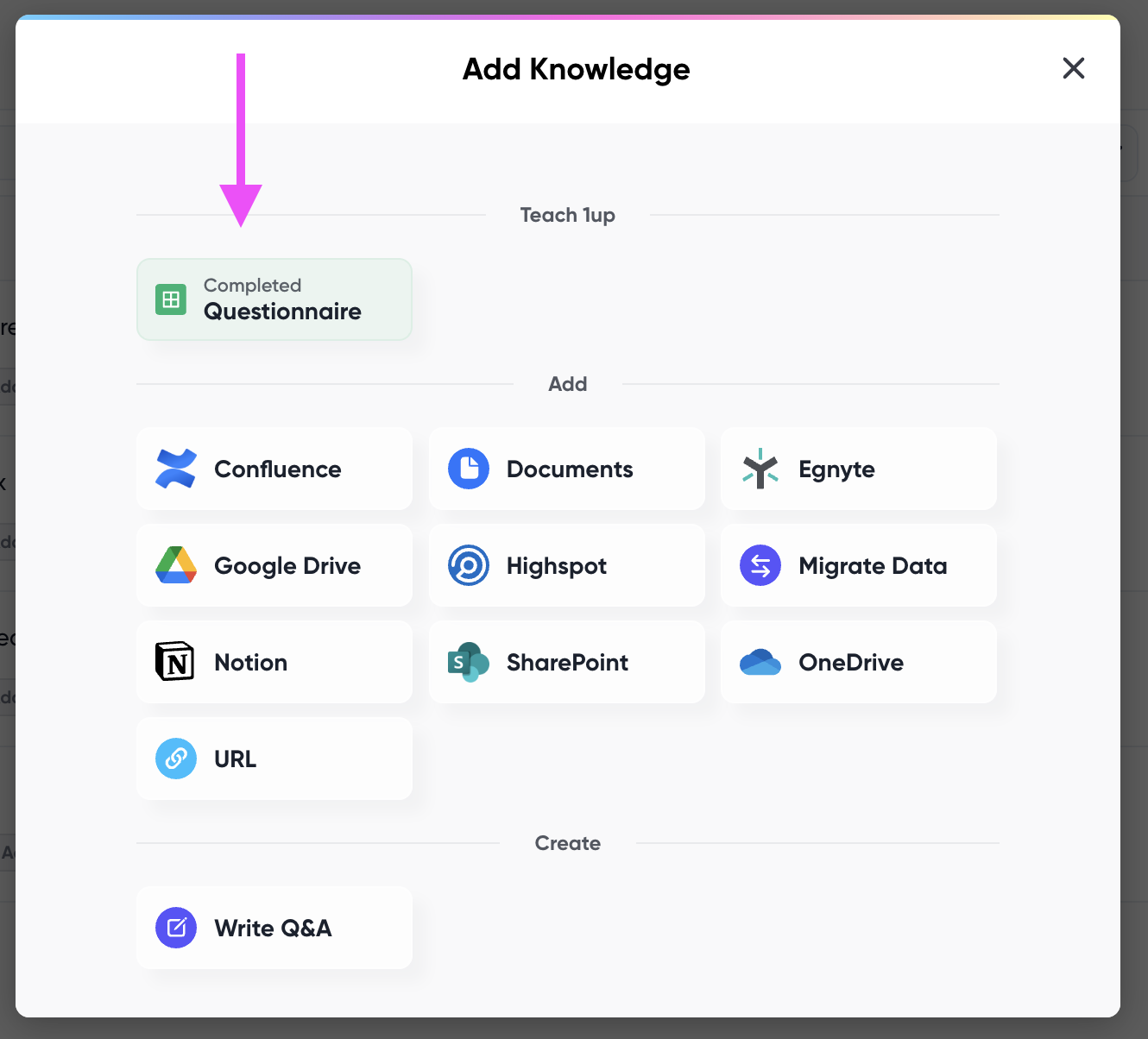
In 1up, go to Knowledge, then Add Knowledge, then select Google Drive. Sign into your Google account and grant the required permissions so 1up can sync your selected content. Once authorized, you are ready to start pulling files in. Note that 1up is a Google-approved third-party application, so your data stays secure throughout.
Step 2: Tag Your Sources So It's Easy to Navigate
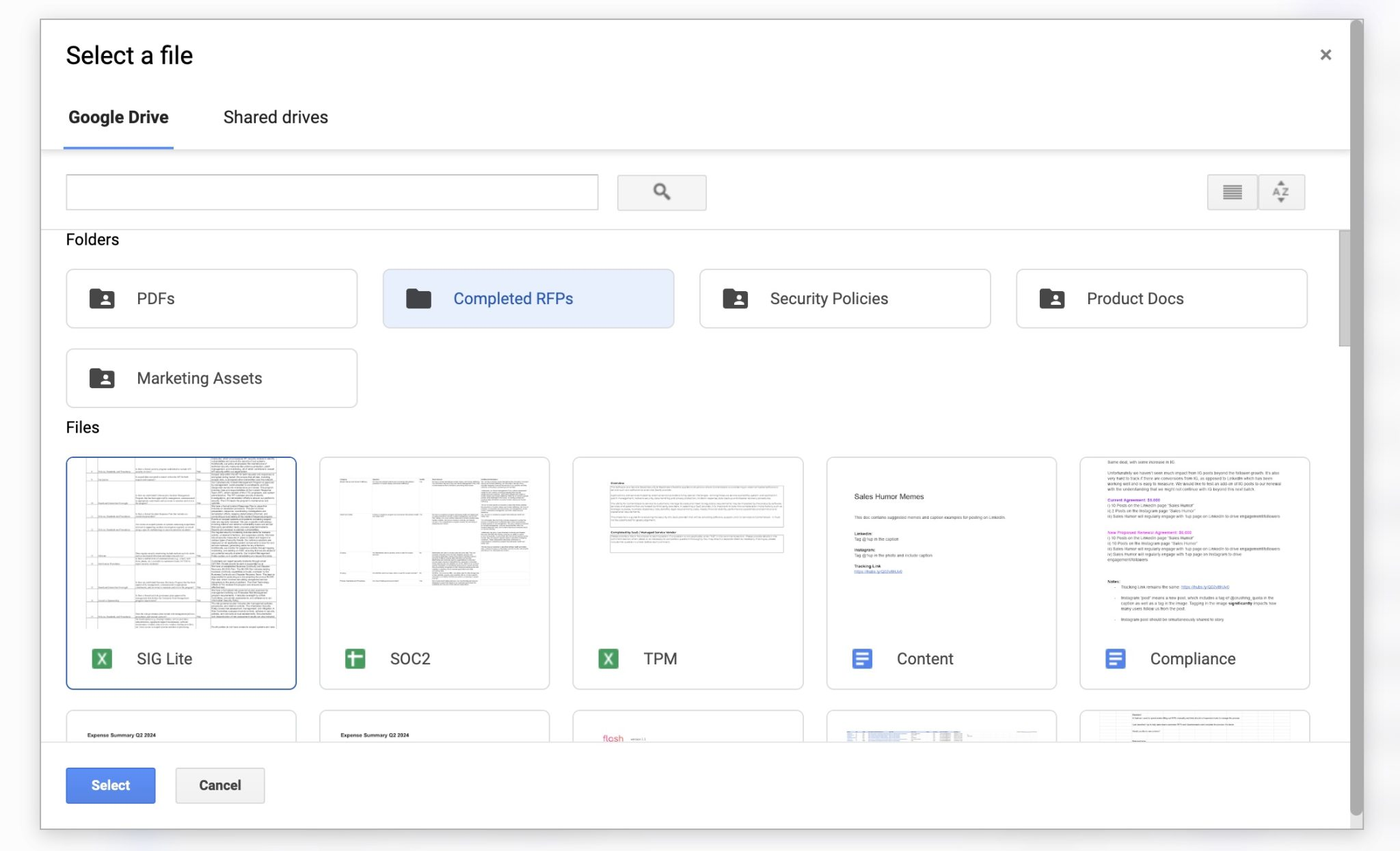
Select the specific files you want in your knowledge base. Note that folders cannot be synced, only individual files you explicitly choose. Whatever you bring in updates automatically in 1up whenever it gets edited in Google Drive, so your team is always working from the current version.
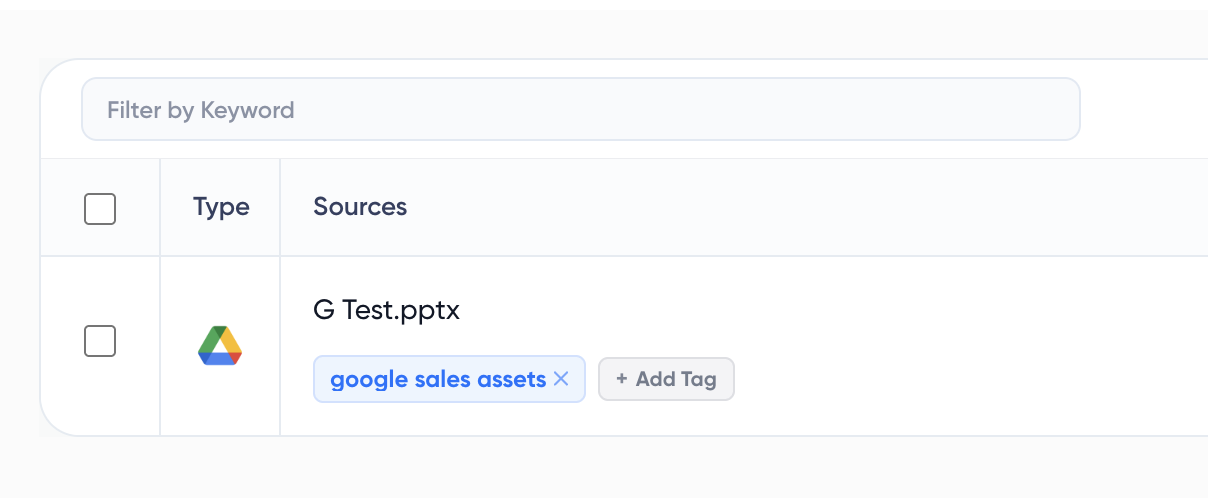
Once your files are in, add tags to keep things organized. Something like "Google Drive," "Sales Assets," or "Battlecards" works well. Tags are how you tell 1up which content to draw from when your team asks a question or when you are filling out a questionnaire.
Step 3: Add 1up to Slack, Teams, or Google Chat
Go to Ask 1up in your dashboard and connect your messaging tool. Once that is set up, anyone on your team can ask a question right in Slack, Teams, or Google Chat and get an answer back from your Google Drive content without leaving the conversation.

Step 4: Get Answers from Ask 1up, the Browser Plugin, or by Uploading Questionnaires
Three ways to put your Google Drive content to work. Ask @1up directly in Slack, Teams, or Google Chat for instant answers to customer questions, product questions, or anything in your files. Use the Browser Plugin to pull answers while browsing or filling out web forms. Or upload a questionnaire and let 1up generate answers in bulk. Works for customer questions, RFPs, DDQs, and more. You can even generate responses in any language, regardless of what language your source material is written in.
Bonus: Build a Customer-Facing Answer Hub
Once your Google Drive content is live in 1up, you can publish a customer-facing Answer Hub. Customers self-serve answers from your content without ever needing to reach your support team. Works well for teams with solid product or technical docs already sitting in Drive.

A sales rep needs to know how to handle a purchase order. Normally they would dig through Drive or track someone down. With 1up they just ask in Slack and the answer comes straight from the RevOps playbook. Done in seconds.
That same setup scales up fast. Whether your team is generating one answer or filling out a multi-language RFP for a global customer, 1up uses your Google Drive content to power every response. The source material doesn't have to be in the same language as the output either, which is genuinely useful for global revenue teams. Connect Google Drive, add it to Slack, Teams, or Google Chat, and your team has a knowledge base they will actually use.
What Changes Once Google Drive Is Connected to 1up
- Your Drive files stop sitting idle Most teams have put real effort into building out their Google Drive. Sales playbooks, battlecards, old RFP responses - it is all in there. The problem is nobody can find the right file fast enough when they actually need it. 1up makes all of that content queryable so it starts doing real work.
- Answers in the tools your team already uses No folder diving, no pinging a colleague. Your team asks a question in Slack, Teams, or Google Chat and gets an answer back in seconds sourced straight from Drive. Works for customer questions, RFPs, and DDQs.
- Always working from the latest version When a file gets updated in Google Drive, 1up picks it up automatically. Your team never has to wonder if they are referencing something outdated. The content stays current without anyone having to manage it manually.
- Scales up for complex workflows too Quick questions are just the start. Teams handling RFPs, DDQs, and multi-language questionnaires use 1up to generate answers in bulk from their Drive content. It also pairs well with other sources like API documentation if your team handles technical questions.

FAQs
1up can pull from Google Docs, Google Sheets, PDFs, Word docs, Excel files, and more. You select exactly which files get synced and 1up will reference those when generating answers.
Yes. There is no limit on questions. You can also upload a full questionnaire and 1up will generate accurate, unique answers for every line.
Yes. 1up is a Google-approved third-party application and enforces enterprise-grade security. You maintain full control over your data at all times.
Yes. 1up can generate answers in any language regardless of what language your source documents are written in. Useful for global sales teams that need localized responses.
.jpg)